

Share a list
- Open the list and click Actions, then Share List.
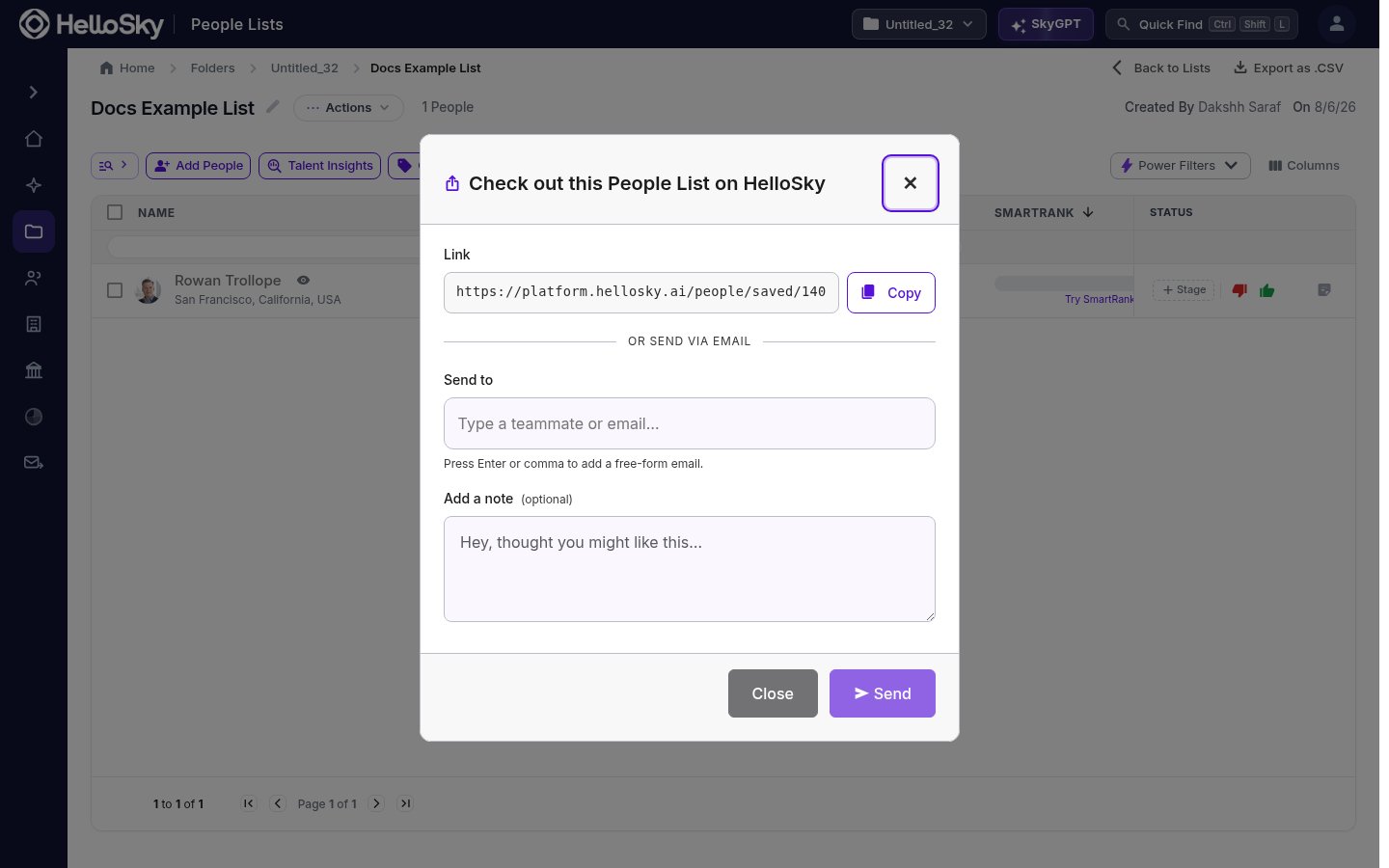
- Either:
- Copy the link and paste it wherever you collaborate, or
- Under Send to, type a teammate’s name or any email address (press Enter or comma to add several), optionally add a note, and click Send.
Your organization’s lists
Lists created by anyone in your organization are visible to teammates under the My Organization view on the lists pages, so sharing is for drawing attention to a list, not for granting access. Two practical implications:- To work a colleague’s list, you do not need to wait for a share: find it under My Organization in Saved.
- In the save panel on search results, check Show org-wide lists to save people directly into teammates’ lists.
Anyone in your organization can view and work a list, but only the list’s creator can delete it.