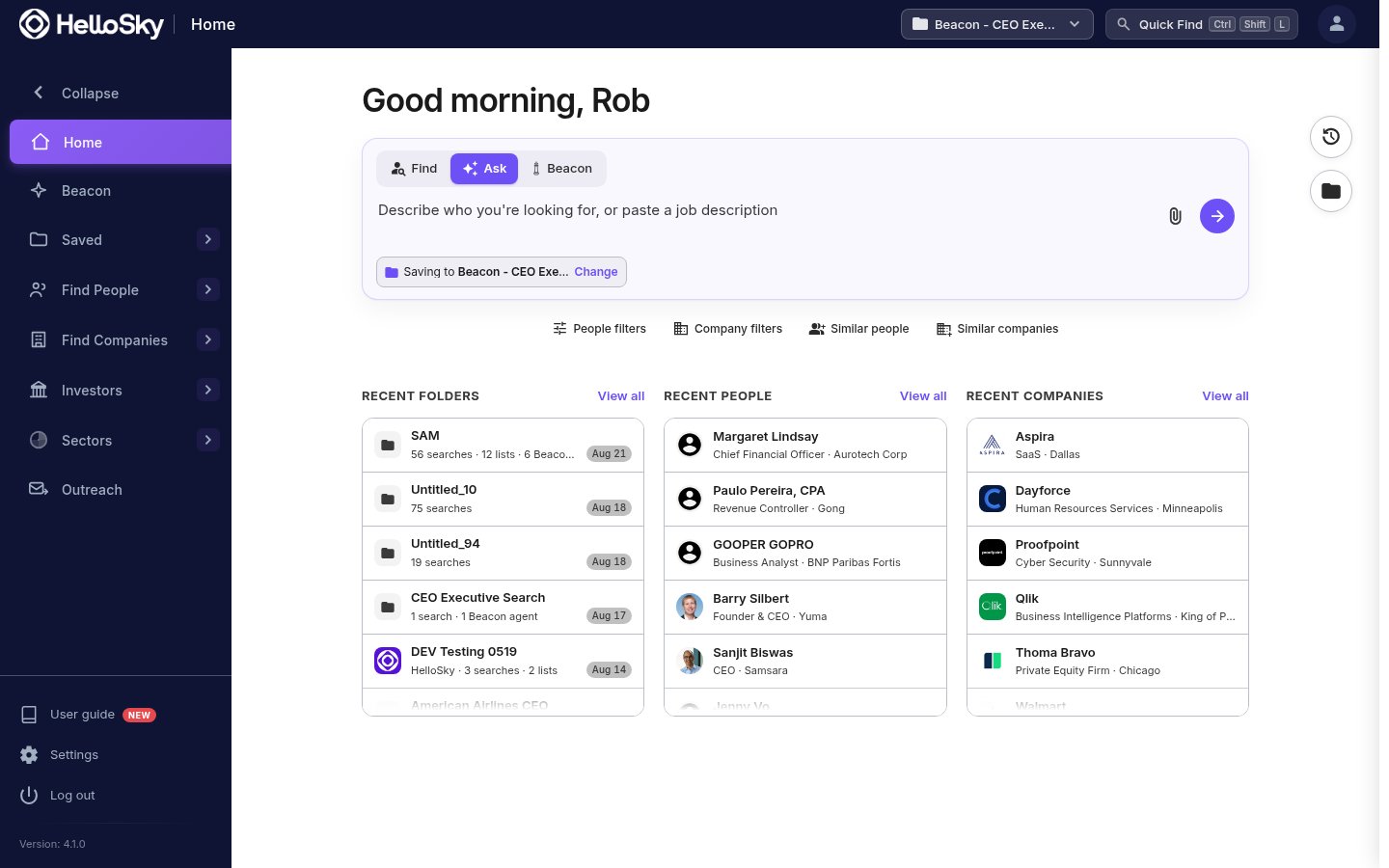
Active Folder: the folder your searches, saves, and Beacon runs are currently filed into. Click it to switch folders, create a new one, or search across all of them.
SkyGPT: describe who you need in plain language and get a built search. Available from every page.
Quick Find (Ctrl+Shift+L): jump straight to any person or company by name.
Almost everything you do in HelloSky happens inside a folder. A search you run, a list you save, and a Beacon run all land in the active folder shown in the top bar. When you switch engagements, switch folders, and each client’s world stays intact: its searches, lists, shortlists, and market maps together.
Home opens on a single composer with three modes, switched with the tabs above the input:
Find: jump straight to a known person, company, or investor by name — the same lookup as Quick Find.
Ask: describe who you need, or paste a job description, and SkyGPT builds a filtered search. As you type, HelloSky shows what it has picked up so far — title, location, stage, and so on — as checkmark chips above the input, so you can see the search taking shape before you run it.
Beacon: paste a job description or describe the role to kick off a Beacon agent run instead of a filtered search.
Whichever mode you use, a folder chip under the composer shows where the result will be saved (Change to pick a different folder), and a shortcut row underneath jumps straight to People filters, Company filters, Similar people, or Similar companies for a fully filter-built search.Below the composer, three columns keep your most recent work one click away:
Recent Folders: your active engagements, each with its search, list, and Beacon-agent counts and when you last touched it.
Recent People and Recent Companies: profiles you have viewed recently.
Each column has a View all link. Two icons floating on the right edge open fuller views without leaving Home: the clock icon opens Searches and Viewed history, and the folder icon opens My Folders — Folders, People, Companies, and Investors, with a New Folder button.
Learn Ctrl+Shift+L early — it jumps to Quick Find from anywhere in the platform.
{"docsConfig":{"theme":"mint","$schema":"https://mintlify.com/docs.json","name":"HelloSky","colors":{"primary":"#5612d8","light":"#7c3aed","dark":"#4c0fbe"},"logo":{"light":"https://mintcdn.com/skyminyr/9Zwx1DmXdwqO-Frl/images/logo-light.png?fit=max\u0026auto=format\u0026n=9Zwx1DmXdwqO-Frl\u0026q=85\u0026s=4367ddcee361f369fc60788fa6da8a7d","dark":"https://mintcdn.com/skyminyr/9Zwx1DmXdwqO-Frl/images/logo-dark.png?fit=max\u0026auto=format\u0026n=9Zwx1DmXdwqO-Frl\u0026q=85\u0026s=61484e3ecc7e0898d672aabbc7a777c0"},"favicon":"https://mintcdn.com/skyminyr/9Zwx1DmXdwqO-Frl/images/favicon.ico?fit=max\u0026auto=format\u0026n=9Zwx1DmXdwqO-Frl\u0026q=85\u0026s=1cbd8aa42c8cb08cee61de131efe4ada","footer":{"socials":{"website":"https://hellosky.ai"}},"styling":{"latex":false},"navigation":{"pages":[]}},"deployment":{"deploymentMetadataValue":{"subdomain":"skyminyr","hasAudioNarration":false,"actualSubdomain":"skyminyr","customDomains":["docs.hellosky.ai"],"gitSource":{"type":"github","owner":"skyminyr","repo":"docs","deployBranch":"main","contentDirectory":"","isPrivate":true,"mountPath":"","label":""},"chroma":{"liveDeploymentHistoryId":"6ad9fceb8f23b9083222558c","collectionId":"953274ad-41ff-4a56-9430-1c5efadc224a","schemaVersion":"v3","latestBuiltDeploymentHistoryId":"6ad9fceb8f23b9083222558c"},"entitlements":{},"buildId":"6ad9fceb8f23b9083222558c","clientVersion":"0.0.4064","searchFilterCounts":[{"language":"default","tag":"Searching","count":5},{"language":"default","tag":"Account \u0026 Billing","count":4},{"language":"default","tag":"Beacon","count":4},{"language":"default","tag":"Lists","count":4},{"language":"default","tag":"Talent Tracking","count":4},{"language":"default","tag":"Getting Started","count":3},{"language":"default","tag":"Outreach","count":3},{"language":"default","tag":"Profiles","count":2},{"language":"default","tag":"Filters","count":2},{"language":"default","tag":"SmartRank","count":2}]},"assistantConfig":{},"basePath":"","hasChatPermissions":false,"hasWebMcpPermissions":false,"toggles":[{"name":"kill-isr","enabled":true,"variant":{"name":"disabled","enabled":false,"feature_enabled":true},"impressionData":false},{"name":"agent-mintlify-slack","enabled":true,"variant":{"name":"disabled","enabled":false,"feature_enabled":true},"impressionData":false},{"name":"agent-integrations-settings","enabled":true,"variant":{"name":"disabled","enabled":false,"feature_enabled":true},"impressionData":false},{"name":"rbac-expansion","enabled":true,"variant":{"name":"disabled","enabled":false,"feature_enabled":true},"impressionData":false},{"name":"automations-pr-grouping","enabled":true,"variant":{"name":"disabled","enabled":false,"feature_enabled":true},"impressionData":false},{"name":"custom-prefix","enabled":true,"variant":{"name":"disabled","enabled":false,"feature_enabled":true},"impressionData":false},{"name":"analytics-v7","enabled":true,"variant":{"name":"disabled","enabled":false,"feature_enabled":true},"impressionData":false},{"name":"user-flows-analytics","enabled":true,"variant":{"name":"disabled","enabled":false,"feature_enabled":true},"impressionData":false},{"name":"no-publish-flow","enabled":true,"variant":{"name":"disabled","enabled":false,"feature_enabled":true},"impressionData":false},{"name":"workos-onboarding","enabled":true,"variant":{"name":"disabled","enabled":false,"feature_enabled":true},"impressionData":false},{"name":"llms-txt-v2","enabled":true,"variant":{"name":"disabled","enabled":false,"feature_enabled":true},"impressionData":false},{"name":"snapshot-serving-live","enabled":true,"variant":{"name":"disabled","enabled":false,"feature_enabled":true},"impressionData":false},{"name":"stripTemperatureMiddleware","enabled":true,"variant":{"name":"disabled","enabled":false,"feature_enabled":true},"impressionData":false},{"name":"support-platform-pylon-zendesk","enabled":true,"variant":{"name":"disabled","enabled":false,"feature_enabled":true},"impressionData":false},{"name":"snapshot-serving","enabled":true,"variant":{"name":"disabled","enabled":false,"feature_enabled":true},"impressionData":false},{"name":"instant-rollback","enabled":true,"variant":{"name":"disabled","enabled":false,"feature_enabled":true},"impressionData":false},{"name":"granular-notifications-server","enabled":true,"variant":{"name":"disabled","enabled":false,"feature_enabled":true},"impressionData":false},{"name":"granular-notifications","enabled":true,"variant":{"name":"disabled","enabled":false,"feature_enabled":true},"impressionData":false},{"name":"automations-fable","enabled":true,"variant":{"name":"disabled","enabled":false,"feature_enabled":true},"impressionData":false},{"name":"fixed-ai-action-pricing","enabled":true,"variant":{"name":"disabled","enabled":false,"feature_enabled":true},"impressionData":false},{"name":"automation-resolve-merge-conflict","enabled":true,"variant":{"name":"disabled","enabled":false,"feature_enabled":true},"impressionData":false},{"name":"scoped-publishing","enabled":true,"variant":{"name":"disabled","enabled":false,"feature_enabled":true},"impressionData":false},{"name":"mintql","enabled":true,"variant":{"name":"disabled","enabled":false,"feature_enabled":true},"impressionData":false},{"name":"page-level-analytics","enabled":true,"variant":{"name":"disabled","enabled":false,"feature_enabled":true},"impressionData":false},{"name":"editor-version-history-v2","enabled":true,"variant":{"name":"disabled","enabled":false,"feature_enabled":true},"impressionData":false},{"name":"billing-page-v2","enabled":true,"variant":{"name":"disabled","enabled":false,"feature_enabled":true},"impressionData":false},{"name":"full-page-search","enabled":true,"variant":{"name":"disabled","enabled":false,"feature_enabled":true},"impressionData":false},{"name":"workspace-projects","enabled":true,"variant":{"name":"disabled","enabled":false,"feature_enabled":true},"impressionData":false},{"name":"assistant-v5","enabled":true,"variant":{"name":"disabled","enabled":false,"feature_enabled":true},"impressionData":false},{"name":"fork-pr-previews","enabled":true,"variant":{"name":"disabled","enabled":false,"feature_enabled":true},"impressionData":false},{"name":"revalidation-jwt","enabled":true,"variant":{"name":"disabled","enabled":false,"feature_enabled":true},"impressionData":false},{"name":"vite-origin","enabled":true,"variant":{"name":"disabled","enabled":false,"feature_enabled":true},"impressionData":false},{"name":"workos-sso-scim","enabled":true,"variant":{"name":"disabled","enabled":false,"feature_enabled":true},"impressionData":false},{"name":"hobby-abuse-scan","enabled":true,"variant":{"name":"disabled","enabled":false,"feature_enabled":true},"impressionData":false},{"name":"dashboard-inbox","enabled":true,"variant":{"name":"disabled","enabled":false,"feature_enabled":true},"impressionData":false},{"name":"workos-signup","enabled":true,"variant":{"name":"disabled","enabled":false,"feature_enabled":true},"impressionData":false},{"name":"turbopuffer-dual-write","enabled":true,"variant":{"name":"disabled","enabled":false,"feature_enabled":true},"impressionData":false},{"name":"workos-enabled","enabled":true,"variant":{"name":"disabled","enabled":false,"feature_enabled":true},"impressionData":false},{"name":"approve-review-flow","enabled":true,"variant":{"name":"disabled","enabled":false,"feature_enabled":true},"impressionData":false},{"name":"sso-setup-deadline-banner","enabled":true,"variant":{"name":"disabled","enabled":false,"feature_enabled":true},"impressionData":false},{"name":"turbopuffer-serve","enabled":true,"variant":{"name":"disabled","enabled":false,"feature_enabled":true},"impressionData":false}],"googleFontsInlined":false},"customCss":[],"page":{"pagePath":"getting-started/navigating-the-platform","slug":"/getting-started/navigating-the-platform","pageMetadata":{"title":"Navigating the platform","description":"A tour of the navigation, folders, and the Home page.","href":"/getting-started/navigating-the-platform"},"description":{"compiledSource":"\"use strict\";\nconst {jsx: _jsx} = arguments[0];\nconst {useMDXComponents: _provideComponents} = arguments[0];\nfunction _createMdxContent(props) {\n const _components = {\n p: \"p\",\n ..._provideComponents(),\n ...props.components\n };\n return _jsx(_components.p, {\n children: \"A tour of the navigation, folders, and the Home page.\"\n });\n}\nfunction MDXContent(props = {}) {\n const {wrapper: MDXLayout} = {\n ..._provideComponents(),\n ...props.components\n };\n return MDXLayout ? _jsx(MDXLayout, {\n ...props,\n children: _jsx(_createMdxContent, {\n ...props\n })\n }) : _createMdxContent(props);\n}\nreturn {\n default: MDXContent\n};\n","frontmatter":{},"scope":{}},"pageType":"default","mdx":{"mdxSource":{"compiledSource":"\"use strict\";const{Fragment:_Fragment,jsx:_jsx,jsxs:_jsxs}=arguments[0];const{useMDXComponents:_provideComponents}=arguments[0];function _createMdxContent(props){const _components={li:`li`,p:`p`,strong:`strong`,ul:`ul`,..._provideComponents(),...props.components},{Frame,Heading,OptimizedImage,Tip}=_components;if(!Frame)_missingMdxReference(`Frame`,true);if(!Heading)_missingMdxReference(`Heading`,true);if(!OptimizedImage)_missingMdxReference(`OptimizedImage`,true);if(!Tip)_missingMdxReference(`Tip`,true);return _jsxs(_Fragment,{children:[_jsx(Frame,{children:_jsx(OptimizedImage,{src:`https://mintcdn.com/skyminyr/6ZFnkmqDDGiWEK9k/images/getting-started/home.png?fit=max\u0026auto=format\u0026n=6ZFnkmqDDGiWEK9k\u0026q=85\u0026s=b92d5124b63b56a96b9ded15b33b427b`,alt:`The HelloSky Home page`,\"data-og-width\":`1440`,width:`1440`,\"data-og-height\":`900`,height:`900`,\"data-path\":`images/getting-started/home.png`,\"data-optimize\":`true`,\"data-opv\":`3`,srcset:`https://mintcdn.com/skyminyr/6ZFnkmqDDGiWEK9k/images/getting-started/home.png?w=280\u0026fit=max\u0026auto=format\u0026n=6ZFnkmqDDGiWEK9k\u0026q=85\u0026s=049fa57b440426a23546d0b7939066de 280w, https://mintcdn.com/skyminyr/6ZFnkmqDDGiWEK9k/images/getting-started/home.png?w=560\u0026fit=max\u0026auto=format\u0026n=6ZFnkmqDDGiWEK9k\u0026q=85\u0026s=33ad76c258008657b20ed2f4f81cb125 560w, https://mintcdn.com/skyminyr/6ZFnkmqDDGiWEK9k/images/getting-started/home.png?w=840\u0026fit=max\u0026auto=format\u0026n=6ZFnkmqDDGiWEK9k\u0026q=85\u0026s=093bb414abf04699b93a526698e3c617 840w, https://mintcdn.com/skyminyr/6ZFnkmqDDGiWEK9k/images/getting-started/home.png?w=1100\u0026fit=max\u0026auto=format\u0026n=6ZFnkmqDDGiWEK9k\u0026q=85\u0026s=d5f3fccbf4172234a6b78a5a7ed90481 1100w, https://mintcdn.com/skyminyr/6ZFnkmqDDGiWEK9k/images/getting-started/home.png?w=1650\u0026fit=max\u0026auto=format\u0026n=6ZFnkmqDDGiWEK9k\u0026q=85\u0026s=da5b0e848ff52d157825706ec83e66fd 1650w, https://mintcdn.com/skyminyr/6ZFnkmqDDGiWEK9k/images/getting-started/home.png?w=2500\u0026fit=max\u0026auto=format\u0026n=6ZFnkmqDDGiWEK9k\u0026q=85\u0026s=9605db03c621ac5fc7ffeae26358c69e 2500w`})}),`\n`,_jsx(Heading,{level:`2`,id:`the-left-navigation`,children:`The left navigation`}),`\n`,_jsxs(_components.ul,{children:[`\n`,_jsxs(_components.li,{children:[_jsx(_components.strong,{children:`Home`}),`: your dashboard: a search composer, recent folders, and recently touched people and companies.`]}),`\n`,_jsxs(_components.li,{children:[_jsx(_components.strong,{children:`Beacon`}),`: the AI research agent. Brief it on a role and it delivers a ranked shortlist and market map.`]}),`\n`,_jsxs(_components.li,{children:[_jsx(_components.strong,{children:`Talent Tracking`}),`: watch a people list and get alerted when anyone on it changes employer or is promoted.`]}),`\n`,_jsxs(_components.li,{children:[_jsx(_components.strong,{children:`Saved`}),`: everything you have kept, organized as `,_jsx(_components.strong,{children:`Folders`}),`, `,_jsx(_components.strong,{children:`People Lists`}),`, `,_jsx(_components.strong,{children:`Company Lists`}),`, and `,_jsx(_components.strong,{children:`Investor Lists`}),`.`]}),`\n`,_jsxs(_components.li,{children:[_jsx(_components.strong,{children:`Find People`}),`: `,_jsx(_components.strong,{children:`People Search`}),` (filter-based) and `,_jsx(_components.strong,{children:`Similar People`}),` (start from a reference person).`]}),`\n`,_jsxs(_components.li,{children:[_jsx(_components.strong,{children:`Find Companies`}),`: `,_jsx(_components.strong,{children:`Company Search`}),` and `,_jsx(_components.strong,{children:`Similar Companies`}),`.`]}),`\n`,_jsxs(_components.li,{children:[_jsx(_components.strong,{children:`Investors`}),`: `,_jsx(_components.strong,{children:`Investor Search`}),` for PE and VC firms.`]}),`\n`,_jsxs(_components.li,{children:[_jsx(_components.strong,{children:`Sectors`}),`: `,_jsx(_components.strong,{children:`Sector Intelligence`}),`, an overview of HelloSky’s sector taxonomy.`]}),`\n`,_jsxs(_components.li,{children:[`At the bottom: `,_jsx(_components.strong,{children:`User guide`}),` (this site), `,_jsx(_components.strong,{children:`Settings`}),`, and `,_jsx(_components.strong,{children:`Log out`}),`.`]}),`\n`]}),`\n`,_jsx(Heading,{level:`2`,id:`the-top-bar`,children:`The top bar`}),`\n`,_jsxs(_components.ul,{children:[`\n`,_jsxs(_components.li,{children:[_jsx(_components.strong,{children:`Active Folder`}),`: the folder your searches, saves, and Beacon runs are currently filed into. Click it to switch folders, create a new one, or search across all of them.`]}),`\n`,_jsxs(_components.li,{children:[_jsx(_components.strong,{children:`SkyGPT`}),`: describe who you need in plain language and get a built search. Available from every page.`]}),`\n`,_jsxs(_components.li,{children:[_jsx(_components.strong,{children:`Quick Find`}),` (Ctrl+Shift+L): jump straight to any person or company by name.`]}),`\n`,_jsxs(_components.li,{children:[_jsx(_components.strong,{children:`User menu`}),`: account shortcuts.`]}),`\n`]}),`\n`,_jsx(Heading,{level:`2`,id:`folders-the-organizing-idea`,children:`Folders: the organizing idea`}),`\n`,_jsx(_components.p,{children:`Almost everything you do in HelloSky happens inside a folder. A search you run, a list you save, and a Beacon run all land in the active folder shown in the top bar. When you switch engagements, switch folders, and each client’s world stays intact: its searches, lists, shortlists, and market maps together.`}),`\n`,_jsx(Heading,{level:`2`,id:`the-home-page`,children:`The Home page`}),`\n`,_jsx(_components.p,{children:`Home opens on a single composer with three modes, switched with the tabs above the input:`}),`\n`,_jsxs(_components.ul,{children:[`\n`,_jsxs(_components.li,{children:[_jsx(_components.strong,{children:`Find`}),`: jump straight to a known person, company, or investor by name — the same lookup as Quick Find.`]}),`\n`,_jsxs(_components.li,{children:[_jsx(_components.strong,{children:`Ask`}),`: describe who you need, or paste a job description, and SkyGPT builds a filtered search. As you type, HelloSky shows what it has picked up so far — title, location, stage, and so on — as checkmark chips above the input, so you can see the search taking shape before you run it.`]}),`\n`,_jsxs(_components.li,{children:[_jsx(_components.strong,{children:`Beacon`}),`: paste a job description or describe the role to kick off a Beacon agent run instead of a filtered search.`]}),`\n`]}),`\n`,_jsx(Frame,{children:_jsx(OptimizedImage,{src:`https://mintcdn.com/skyminyr/6ZFnkmqDDGiWEK9k/images/getting-started/home-ask-detection.png?fit=max\u0026auto=format\u0026n=6ZFnkmqDDGiWEK9k\u0026q=85\u0026s=99b9d0203aac8dfc485b8e5e5a18b47a`,alt:`Ask mode showing live-detected filter chips as you type`,\"data-og-width\":`1440`,width:`1440`,\"data-og-height\":`900`,height:`900`,\"data-path\":`images/getting-started/home-ask-detection.png`,\"data-optimize\":`true`,\"data-opv\":`3`,srcset:`https://mintcdn.com/skyminyr/6ZFnkmqDDGiWEK9k/images/getting-started/home-ask-detection.png?w=280\u0026fit=max\u0026auto=format\u0026n=6ZFnkmqDDGiWEK9k\u0026q=85\u0026s=651f7a32fc08b3797801afaac6628ae6 280w, https://mintcdn.com/skyminyr/6ZFnkmqDDGiWEK9k/images/getting-started/home-ask-detection.png?w=560\u0026fit=max\u0026auto=format\u0026n=6ZFnkmqDDGiWEK9k\u0026q=85\u0026s=e9a07ca9d5e241fabf54a79333534956 560w, https://mintcdn.com/skyminyr/6ZFnkmqDDGiWEK9k/images/getting-started/home-ask-detection.png?w=840\u0026fit=max\u0026auto=format\u0026n=6ZFnkmqDDGiWEK9k\u0026q=85\u0026s=ed4db0abb7f88efcb946d35c64e31980 840w, https://mintcdn.com/skyminyr/6ZFnkmqDDGiWEK9k/images/getting-started/home-ask-detection.png?w=1100\u0026fit=max\u0026auto=format\u0026n=6ZFnkmqDDGiWEK9k\u0026q=85\u0026s=208580607343e6c9b2592f2cf93dd29d 1100w, https://mintcdn.com/skyminyr/6ZFnkmqDDGiWEK9k/images/getting-started/home-ask-detection.png?w=1650\u0026fit=max\u0026auto=format\u0026n=6ZFnkmqDDGiWEK9k\u0026q=85\u0026s=9de8c69a46e60f8b94f5ddba77c62383 1650w, https://mintcdn.com/skyminyr/6ZFnkmqDDGiWEK9k/images/getting-started/home-ask-detection.png?w=2500\u0026fit=max\u0026auto=format\u0026n=6ZFnkmqDDGiWEK9k\u0026q=85\u0026s=44dd84e17464d21d21a3dbda702a130e 2500w`})}),`\n`,_jsxs(_components.p,{children:[`Whichever mode you use, a folder chip under the composer shows where the result will be saved (`,_jsx(_components.strong,{children:`Change`}),` to pick a different folder), and a shortcut row underneath jumps straight to `,_jsx(_components.strong,{children:`People filters`}),`, `,_jsx(_components.strong,{children:`Company filters`}),`, `,_jsx(_components.strong,{children:`Similar people`}),`, or `,_jsx(_components.strong,{children:`Similar companies`}),` for a fully filter-built search.`]}),`\n`,_jsx(_components.p,{children:`Below the composer, three columns keep your most recent work one click away:`}),`\n`,_jsxs(_components.ul,{children:[`\n`,_jsxs(_components.li,{children:[_jsx(_components.strong,{children:`Recent Folders`}),`: your active engagements, each with its search, list, and Beacon-agent counts and when you last touched it.`]}),`\n`,_jsxs(_components.li,{children:[_jsx(_components.strong,{children:`Recent People`}),` and `,_jsx(_components.strong,{children:`Recent Companies`}),`: profiles you have viewed recently.`]}),`\n`]}),`\n`,_jsxs(_components.p,{children:[`Each column has a `,_jsx(_components.strong,{children:`View all`}),` link. Two icons floating on the right edge open fuller views without leaving Home: the clock icon opens `,_jsx(_components.strong,{children:`Searches`}),` and `,_jsx(_components.strong,{children:`Viewed`}),` history, and the folder icon opens `,_jsx(_components.strong,{children:`My Folders`}),` — Folders, People, Companies, and Investors, with a `,_jsx(_components.strong,{children:`New Folder`}),` button.`]}),`\n`,_jsx(Tip,{children:_jsxs(_components.p,{children:[`Learn `,_jsx(_components.strong,{children:`Ctrl+Shift+L`}),` early — it jumps to Quick Find from anywhere in the platform.`]})})]})}function MDXContent(props={}){const{wrapper:MDXLayout}={..._provideComponents(),...props.components};return MDXLayout?_jsx(MDXLayout,{...props,children:_jsx(_createMdxContent,{...props})}):_createMdxContent(props)}return{default:MDXContent};function _missingMdxReference(id,component){throw new Error(`Expected `+(component?`component`:`object`)+\" `\"+id+\"` to be defined: you likely forgot to import, pass, or provide it.\")}","frontmatter":{},"scope":{"config":{},"pageMetadata":{"title":"Navigating the platform","description":"A tour of the navigation, folders, and the Home page.","href":"/getting-started/navigating-the-platform"}}},"mdxSourceWithNoJs":null},"mdxExtracts":{"tableOfContents":[{"title":"The left navigation","slug":"the-left-navigation","depth":2,"children":[]},{"title":"The top bar","slug":"the-top-bar","depth":2,"children":[]},{"title":"Folders: the organizing idea","slug":"folders-the-organizing-idea","depth":2,"children":[]},{"title":"The Home page","slug":"the-home-page","depth":2,"children":[]}],"codeExamples":{}},"jsLinks":["/_mintlify/custom/skyminyr/5f86812a3338b41f/assistant.js"],"subdomain":"skyminyr","siteName":"HelloSky","title":"Navigating the platform - HelloSky","navMaps":{"firstHrefInVersion":{},"firstHrefInLanguage":{}},"lastModified":"2026-08-24T20:56:49.725Z","originalFileLocation":"getting-started/navigating-the-platform.mdx"},"headHtml":"\u003cscript data-mint-head>(function(){var d=document.documentElement,p=null;if(!p){try{p=localStorage.getItem(\"isDarkMode\")}catch(e){}if(p==='true')p='dark';else if(p==='false')p='light';if(p!=='light'\u0026\u0026p!=='dark'\u0026\u0026p!=='system')p=\"system\"}var r=p==='system'?(matchMedia(\"(prefers-color-scheme: dark)\").matches?'dark':'light'):p;d.classList.remove(r==='dark'?'light':'dark');d.classList.add(r);d.setAttribute(\"data-theme-preference\",p)})();\u003c/script>\u003cmeta data-mint-head name=\"description\" content=\"A tour of the navigation, folders, and the Home page.\">\u003cmeta data-mint-head name=\"application-name\" content=\"HelloSky\">\u003cmeta data-mint-head name=\"generator\" content=\"Mintlify\">\u003clink data-mint-head rel=\"icon\" type=\"image/png\" sizes=\"192x192\" href=\"/mintlify-assets/_mintlify/favicons/skyminyr/JaGjQIhinlGiihhI/_generated/favicon/android-chrome-192x192.png\" media=\"(prefers-color-scheme: light)\">\u003clink data-mint-head rel=\"apple-touch-icon\" type=\"image/png\" sizes=\"180x180\" href=\"/mintlify-assets/_mintlify/favicons/skyminyr/JaGjQIhinlGiihhI/_generated/favicon/apple-touch-icon.png\">\u003clink data-mint-head rel=\"icon\" type=\"image/png\" sizes=\"16x16\" href=\"/mintlify-assets/_mintlify/favicons/skyminyr/JaGjQIhinlGiihhI/_generated/favicon/favicon-16x16.png\" media=\"(prefers-color-scheme: light)\">\u003clink data-mint-head rel=\"icon\" type=\"image/png\" sizes=\"32x32\" href=\"/mintlify-assets/_mintlify/favicons/skyminyr/JaGjQIhinlGiihhI/_generated/favicon/favicon-32x32.png\" media=\"(prefers-color-scheme: light)\">\u003clink data-mint-head rel=\"shortcut icon\" type=\"image/x-icon\" href=\"/mintlify-assets/_mintlify/favicons/skyminyr/JaGjQIhinlGiihhI/_generated/favicon/favicon.ico\" media=\"(prefers-color-scheme: light)\">\u003clink data-mint-head rel=\"icon\" type=\"image/png\" sizes=\"192x192\" href=\"/mintlify-assets/_mintlify/favicons/skyminyr/JaGjQIhinlGiihhI/_generated/favicon-dark/android-chrome-192x192.png\" media=\"(prefers-color-scheme: dark)\">\u003clink data-mint-head rel=\"icon\" type=\"image/png\" sizes=\"16x16\" href=\"/mintlify-assets/_mintlify/favicons/skyminyr/JaGjQIhinlGiihhI/_generated/favicon-dark/favicon-16x16.png\" media=\"(prefers-color-scheme: dark)\">\u003clink data-mint-head rel=\"icon\" type=\"image/png\" sizes=\"32x32\" href=\"/mintlify-assets/_mintlify/favicons/skyminyr/JaGjQIhinlGiihhI/_generated/favicon-dark/favicon-32x32.png\" media=\"(prefers-color-scheme: dark)\">\u003clink data-mint-head rel=\"shortcut icon\" type=\"image/x-icon\" href=\"/mintlify-assets/_mintlify/favicons/skyminyr/JaGjQIhinlGiihhI/_generated/favicon-dark/favicon.ico\" media=\"(prefers-color-scheme: dark)\">\u003cmeta data-mint-head property=\"og:title\" content=\"Navigating the platform - HelloSky\">\u003cmeta data-mint-head property=\"og:description\" content=\"A tour of the navigation, folders, and the Home page.\">\u003cmeta data-mint-head property=\"og:site_name\" content=\"HelloSky\">\u003cmeta data-mint-head property=\"og:url\" content=\"https://docs.hellosky.ai/getting-started/navigating-the-platform\">\u003cmeta data-mint-head property=\"og:type\" content=\"website\">\u003cmeta data-mint-head property=\"og:image\" content=\"https://skyminyr.mintlify.app/_mintlify/api/og/v2?division=Getting+Started\u0026amp;title=Navigating+the+platform\u0026amp;description=A+tour+of+the+navigation%2C+folders%2C+and+the+Home+page.\u0026amp;theme=c2441faabf1d28a2581e016c\u0026amp;signature=b1ddf2dfb37ff94fd694a603112a03b2caea81a55038ffdad77f0dbb986576a6\">\u003cmeta data-mint-head property=\"og:image:width\" content=\"1200\">\u003cmeta data-mint-head property=\"og:image:height\" content=\"630\">\u003cmeta data-mint-head name=\"twitter:card\" content=\"summary_large_image\">\u003cmeta data-mint-head name=\"twitter:title\" content=\"Navigating the platform - HelloSky\">\u003cmeta data-mint-head name=\"twitter:description\" content=\"A tour of the navigation, folders, and the Home page.\">\u003cmeta data-mint-head name=\"twitter:image\" content=\"https://skyminyr.mintlify.app/_mintlify/api/og/v2?division=Getting+Started\u0026amp;title=Navigating+the+platform\u0026amp;description=A+tour+of+the+navigation%2C+folders%2C+and+the+Home+page.\u0026amp;theme=c2441faabf1d28a2581e016c\u0026amp;signature=b1ddf2dfb37ff94fd694a603112a03b2caea81a55038ffdad77f0dbb986576a6\">\u003cmeta data-mint-head name=\"twitter:image:width\" content=\"1200\">\u003cmeta data-mint-head name=\"twitter:image:height\" content=\"630\">\u003cmeta data-mint-head name=\"msapplication-config\" content=\"/mintlify-assets/_mintlify/favicons/skyminyr/JaGjQIhinlGiihhI/_generated/favicon/browserconfig.xml\">\u003cmeta data-mint-head name=\"apple-mobile-web-app-title\" content=\"HelloSky\">\u003cmeta data-mint-head name=\"msapplication-TileColor\" content=\"#5612d8\">\u003clink data-mint-head rel=\"canonical\" href=\"https://docs.hellosky.ai/getting-started/navigating-the-platform\">\u003clink data-mint-head rel=\"alternate\" type=\"application/xml\" href=\"/sitemap.xml\">\u003clink data-mint-head rel=\"alternate\" type=\"text/markdown\" href=\"/getting-started/navigating-the-platform.md\">\u003cscript data-mint-head type=\"application/ld+json\">{\"@context\":\"https://schema.org\",\"@graph\":[{\"@type\":\"Organization\",\"@id\":\"https://docs.hellosky.ai/#organization\",\"name\":\"HelloSky\",\"url\":\"https://docs.hellosky.ai\",\"logo\":{\"@type\":\"ImageObject\",\"url\":\"https://mintcdn.com/skyminyr/9Zwx1DmXdwqO-Frl/images/logo-light.png?fit=max\u0026auto=format\u0026n=9Zwx1DmXdwqO-Frl\u0026q=85\u0026s=4367ddcee361f369fc60788fa6da8a7d\"}},{\"@type\":\"WebSite\",\"@id\":\"https://docs.hellosky.ai#website\",\"name\":\"HelloSky\",\"url\":\"https://docs.hellosky.ai\",\"publisher\":{\"@id\":\"https://docs.hellosky.ai/#organization\"}},{\"@type\":\"WebPage\",\"@id\":\"https://docs.hellosky.ai/getting-started/navigating-the-platform#webpage\",\"url\":\"https://docs.hellosky.ai/getting-started/navigating-the-platform\",\"name\":\"Navigating the platform\",\"description\":\"A tour of the navigation, folders, and the Home page.\",\"dateModified\":\"2026-08-24T20:56:49.725Z\",\"isPartOf\":{\"@id\":\"https://docs.hellosky.ai#website\"},\"breadcrumb\":{\"@id\":\"https://docs.hellosky.ai/getting-started/navigating-the-platform#breadcrumb\"}},{\"@type\":\"BreadcrumbList\",\"@id\":\"https://docs.hellosky.ai/getting-started/navigating-the-platform#breadcrumb\",\"itemListElement\":[{\"@type\":\"ListItem\",\"position\":1,\"name\":\"Getting Started\",\"item\":\"https://docs.hellosky.ai/index\"},{\"@type\":\"ListItem\",\"position\":2,\"name\":\"Navigating the platform\",\"item\":\"https://docs.hellosky.ai/getting-started/navigating-the-platform\"}]},{\"@type\":[\"Article\",\"TechArticle\"],\"@id\":\"https://docs.hellosky.ai/getting-started/navigating-the-platform#article\",\"headline\":\"Navigating the platform\",\"name\":\"Navigating the platform\",\"description\":\"A tour of the navigation, folders, and the Home page.\",\"url\":\"https://docs.hellosky.ai/getting-started/navigating-the-platform\",\"mainEntityOfPage\":{\"@id\":\"https://docs.hellosky.ai/getting-started/navigating-the-platform#webpage\"},\"dateModified\":\"2026-08-24T20:56:49.725Z\",\"publisher\":{\"@id\":\"https://docs.hellosky.ai/#organization\"},\"isPartOf\":{\"@id\":\"https://docs.hellosky.ai#website\"}}]}\u003c/script>\u003cscript data-mint-head type=\"application/ld+json\">{\"@context\":\"https://schema.org\",\"@type\":\"WebSite\",\"name\":\"HelloSky\",\"creator\":{\"@type\":\"Organization\",\"name\":\"Mintlify\",\"url\":\"https://mintlify.com\"}}\u003c/script>","siteName":"HelloSky","nav":{"global":null,"groups":[{"group":"Getting Started","pages":[{"title":"Welcome to HelloSky","mode":"wide","href":"/index"},{"title":"Quickstart","description":"Run your first search and build a list in ten minutes.","href":"/getting-started/quickstart"},{"title":"Navigating the platform","href":"/getting-started/navigating-the-platform"}]},{"group":"Searching","pages":[{"title":"People search","description":"Filter millions of executive profiles by title, location, sector, experience, and more.","href":"/search/people-search"},{"title":"Company search","href":"/search/company-search"},{"title":"Investor search","href":"/search/investor-search"},{"title":"Find similar","href":"/search/find-similar"},{"title":"Search tips","href":"/search/search-tips"}]},{"group":"Filters","pages":[{"title":"People filters","href":"/search/people-filters"},{"title":"Company filters","href":"/search/company-filters"}]},{"group":"Profiles","pages":[{"title":"Person profiles","href":"/profiles/person-profiles"},{"title":"Company profiles","href":"/profiles/company-profiles"}]},{"group":"Lists","pages":[{"title":"Creating lists","href":"/lists/creating-lists"},{"title":"Managing lists","href":"/lists/managing-lists"},{"title":"Sharing lists","href":"/lists/sharing-lists"},{"title":"List newsfeeds","href":"/lists/list-newsfeeds"}]},{"group":"SmartRank","pages":[{"title":"Ranking a list","href":"/smartrank/ranking-a-list"},{"title":"Reading the results","href":"/smartrank/reading-the-results"}]},{"group":"Outreach","pages":[{"title":"Sending email","href":"/outreach/sending-email"},{"title":"Email sequences","href":"/outreach/email-sequences"},{"title":"Guardrails \u0026 approvals","href":"/outreach/guardrails-and-approvals"}]},{"group":"Beacon","pages":[{"title":"What is Beacon","href":"/beacon/what-is-beacon"},{"title":"Running a Beacon search","href":"/beacon/running-a-beacon-search"},{"title":"Reviewing the shortlist","href":"/beacon/reviewing-the-shortlist"},{"title":"Market maps","href":"/beacon/market-maps"}]},{"group":"Talent Tracking","pages":[{"title":"What is Talent Tracking","href":"/talent-tracking/what-is-talent-tracking"},{"title":"Tracking a list","href":"/talent-tracking/tracking-a-list"},{"title":"Reading the moves","href":"/talent-tracking/reading-the-moves"},{"title":"Alerts and emails","href":"/talent-tracking/alerts-and-emails"}]},{"group":"SkyGPT","pages":[{"title":"Using SkyGPT","href":"/skygpt/using-skygpt"}]},{"group":"Account \u0026 Billing","pages":[{"title":"Credits \u0026 usage","href":"/account/credits-and-usage"},{"title":"Managing your team \u0026 account","href":"/account/managing-your-team"},{"title":"FAQ","href":"/account/faq"},{"title":"Getting support","href":"/account/support"}]}]},"basePath":"","title":"Navigating the platform - HelloSky","buildId":"dpl_2gSLkbMoF5kkLsBqYzq9KWtDyJRo","deploymentId":"dpl_2gSLkbMoF5kkLsBqYzq9KWtDyJRo","dynamics":["07c022d89b","a74be98ba7"],"chunks":["Frame-Du0ep7S2.js","DynamicMarkdown-Jk8YAWGN.js","zoom-image-lightbox-DR0NJNUZ.js","lightbox-handle-r17bVUz3.js"]}